
Stop Using JavaScript, Use These Methods Instead
Let's Talk First, About the JavaScript Issue
For years now JavaScript continues to be heavily overused for web features, where now today you have functions that have standardized, native, and high-performance equivalents in HTML and CSS. In today's modern web standards, it now allows developers to replace these complex and unnesesary scripts with simple declarative tags that provide better accessibility and speed. It's also really annoying when developers decide to use entire libraries for these basic tasks such as jQuery and React logic, which I personally hate.
Common Overused Scenarios
A lot of these scenarios have had native solutions for years now, although some are more recent than others.
- Dialog Modals and Popups
- Dropdown Menus
- Accordions and Toggles
- Tooltips
- Form Validation
- Scroll-down animations
- Lazy Loading Images
- Complex Page Transitions
- Color Pickers and Complex Inputs
- Responsive Element Sizing
- and much more
Consequences
Relying so much on JavaScript for these basic functions introduces a few risks:
- Performance "Tax": Every 500KB of unused and redundant code can lower a site's performance score by 10 - 20 points. JavaScript can be and is computationally "expensive" because it must be downloaded, parsed, and executed, which clogs the browser's main thread and delays rendering time for the webpage.
- Fragility: JavaScript is less forgiving than how HTML and CSS are. Just a single syntax error can end up breaking an entire webpage's functionality or worse, whereas browsers may often ignore minor errors in markup and styling.
- Accessibility Barriers: Doing custom-built JavaScript components can often fail to manage keyboard focus or screen reader announcements correctly, while native elements have these behaviors "baked in".
- SEO and Maintenance: Relying heavily on script-generated content can hinder search engine indexing. It adds layers of complexity for future maintenance compared to using standard, declarative code.
Native Alternatives
Dialog Modals and Popups - MDN
No need to write custom scripst to handle popups, you can use the <dialog> tag that is available natively in HTML.
This dialog example with provided with a header and quick description, along with a form inside it. Forms with a submit button are able to close the dialog. A button is at the top to show a team name and an edit button that'll use popovertarget to show the dialog
<div class="team">
  <h2>Team 2</h2>
  <button popovertarget="edit-team-2">Edit Team</button>
</div>

<dialog id="edit-team-2" closedby="any" popover>
  <div class="dialog-header">
    <h2>Update Team</h2>
    <p>Change your team's name and color.</p>
  </div>
  <form>
    <label>Name</label>
    <input name="name" type="text" required/>
    <label>Color</label>
    <select>
      <option>Red</option>
      <option>Green</option>
      <option>Blue</option>
    </select>
  </form>
</dialog>
Accordions and Dropdown Menus - MDN
I've been using the <details> tag personally to create dropdown menus for headers, elements, and more. They can also be used for accordions too.
Example for a dropdown menu:
<details>
    <summary>Dropdown Menu</summary>
    <div class="dropdown">
        <a href="/">Home</a>
        <a href="/blog">Blog</a>
        <a href="/projects">Projects</a>
        <a href="/services">Services</a>
    </div>
</details>
For an accordion menu:
<details>
  <summary>Question here</summary>
  <p>Answer here</summary>
</details>
<details>
  <summary>Question here</summary>
  <p>Answer here</summary>
</details>
<details>
  <summary>Question here</summary>
  <p>Answer here</summary>
</details>
Another accordion, in this one if you click any of the items, the others will close if they share the same name:
<details name="question">
  <summary>Question here</summary>
  <p>Answer here</summary>
</details>
<details name="question">
  <summary>Question here</summary>
  <p>Answer here</summary>
</details>
<details name="question">
  <summary>Question here</summary>
  <p>Answer here</summary>
</details>
Fallbacks
Noscript - MDN
In some cases, you may need to disable or at least hide certain elements on the webpage if they require JavaScript regardless but aren't crucial. The tag <noscript> can be put in place as a fallback mechanism if the user's web-browser has JavaScript disabled.
For example, a password field that includes a reveal password button which uses JavaScript, hide it with CSS with <noscript>:
<form>
  <label>New Password</label>
  <input name="new_password" type="password" required/>
  <button onclick="TogglePassword()">Reveal Password</button>
</form>
<script>
function TogglePassword() {
  document.querySelector('[name="new_password"]').type = Field.type === "password" ? "text" : "password"
}
</script>
<noscript>
  <style>
    [onclick="TogglePassword()"] {
      display: none;
    }
  </style>
</noscript>
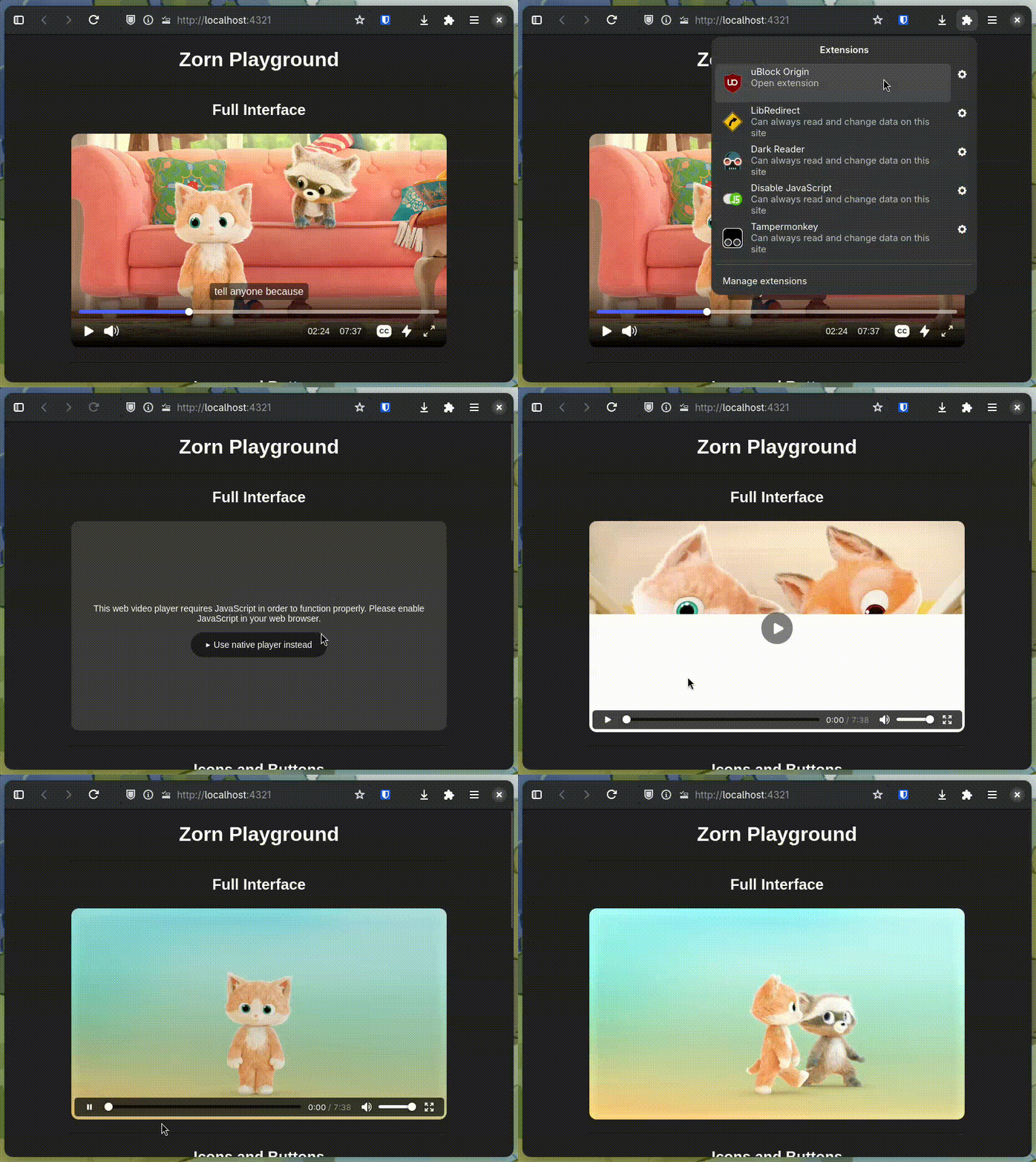
This method is used in Zorn to hide all controls and show a warning popup explaining to the end-user that JavaScript is required for the video player, as it's impossible to build custom HTML video players without JavaScript. However, a neat thing that Zorn does is show a fallback button to the native player using the <details/> method, allowing end-users to instead display the browser's native video player without the need of JavaScript being enabled.
Read more about how that works here: https://gist.sudovanilla.org/Korbs/3a5888045a7e41f085b44c84d7fd7441